
Available nodes
Prompt
Prompt
Run any Prompt as part of your agent.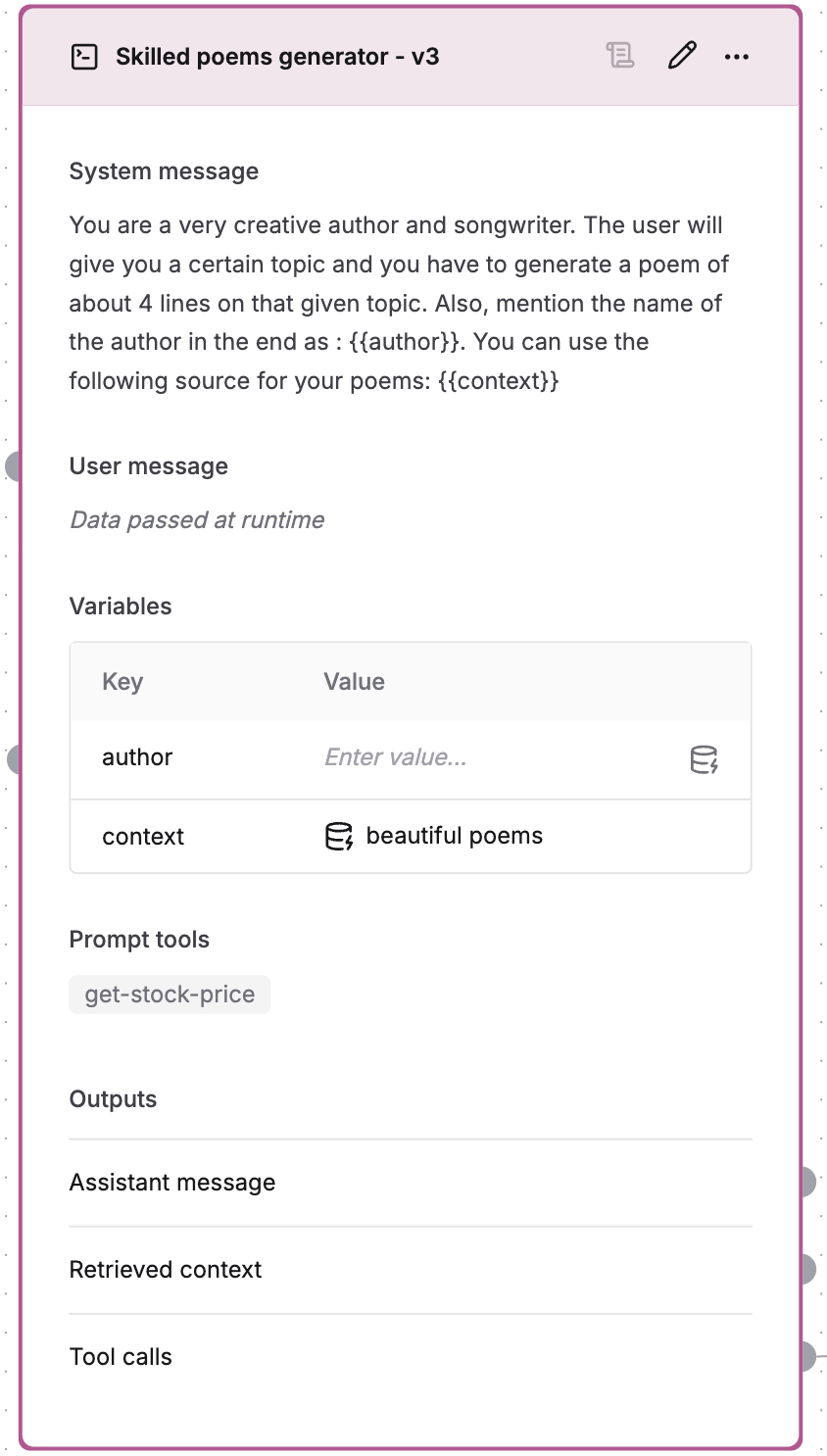
- Select from your existing prompts and versions or create an entirely new prompt directly in the editor
- Support for variables and context
- Input passed as user message
- Additionally, any variables defined in the prompt are available as input to the block
- 3 available outputs:
- Assistant’s response
- Context retrieved during the LLM call
- Output of attached tool call (if called by the LLM)
- Click on the to edit the selected prompt inline
Code
Code
Add JavaScript logic to process data between nodes.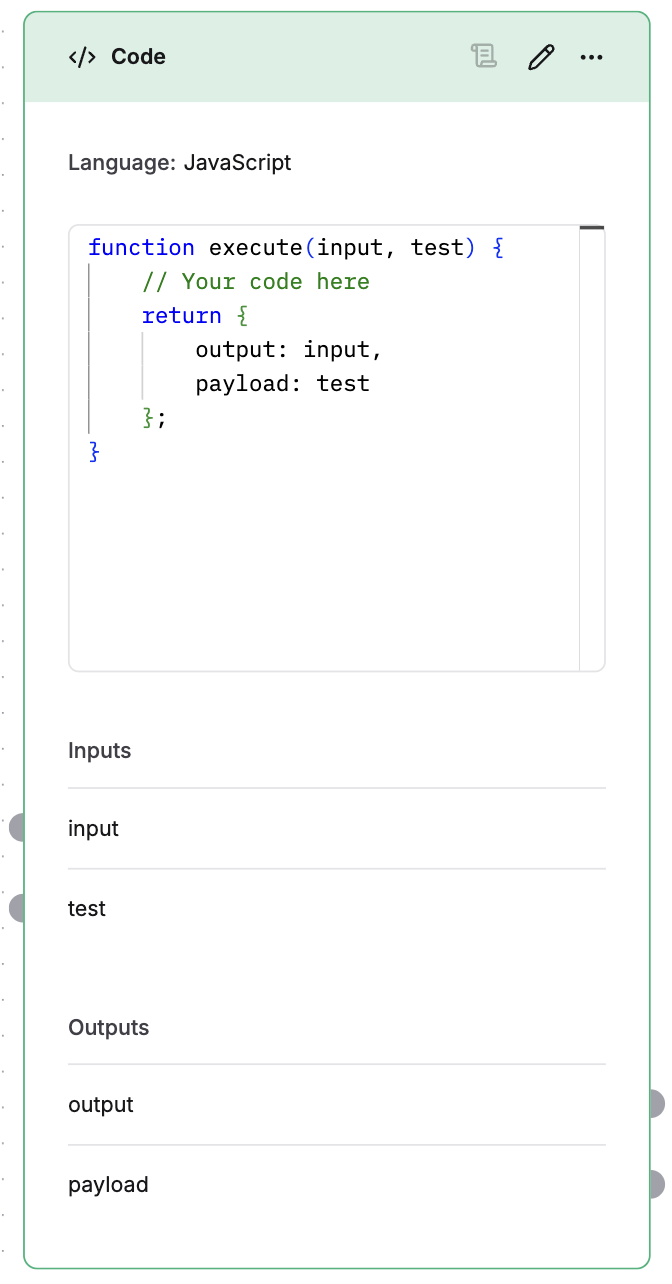
- Write custom code to transform data
- Automatic JSON parsing of input
- Automatic stringification of output
- Seamless connection with other nodes
- All parameters included in the
executefunction are available as input to the block - The output of the code block must be an object. All keys of the returned object are available as output for the next blocks
- Click on the to edit the selected code block inline
API
API
Connect external services into your agent.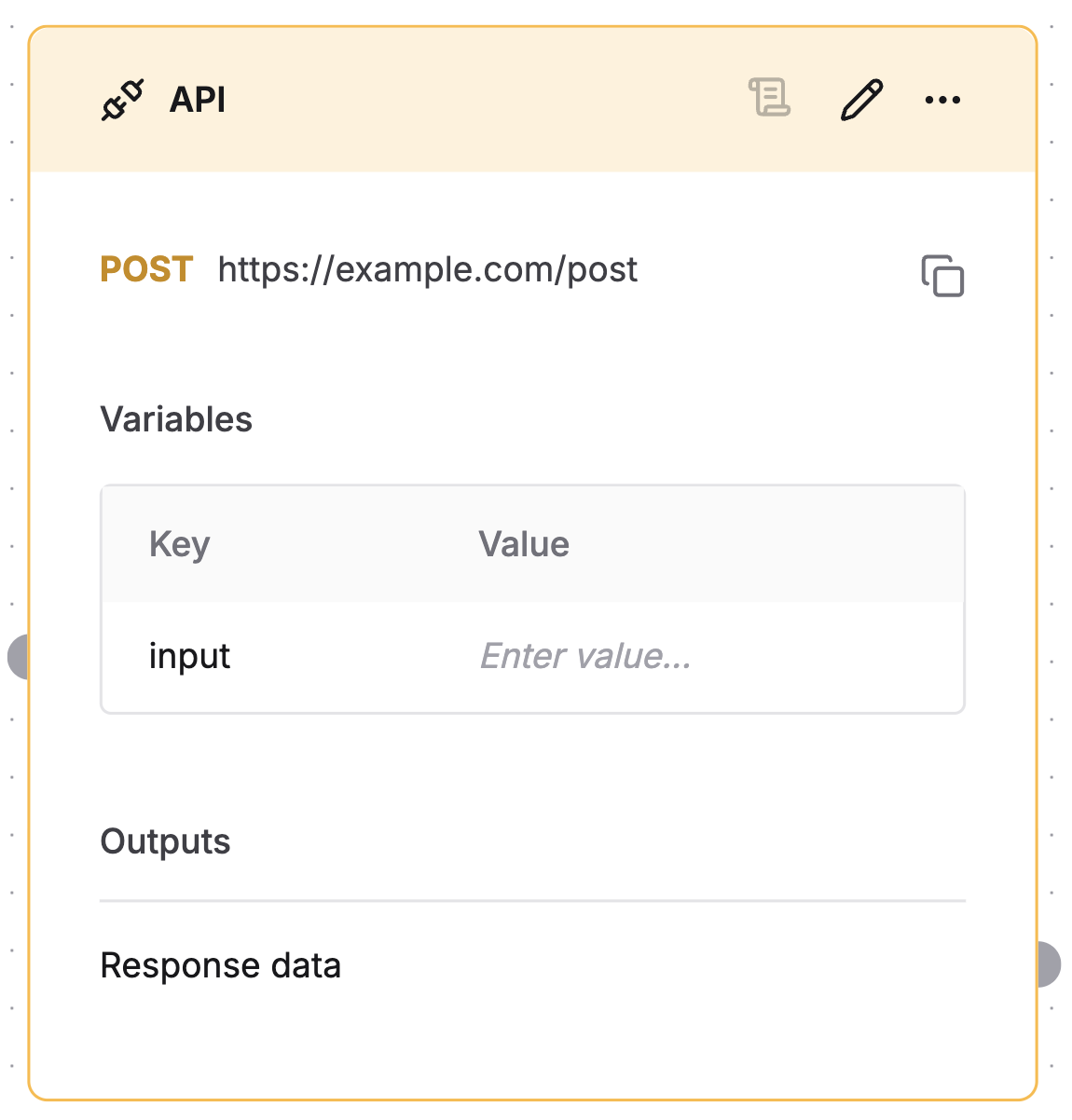
- Support for GET, POST and other methods
- Variable substitution in headers, params and body
- Automatic data format handling
- Easy integration with other nodes
- All variables defined in the API node are available as input to the block
- The payload returned from the call is available as output for the next blocks
- Click on the to edit the selected API node inline
Conditional
Conditional
Add conditional routing to your agent.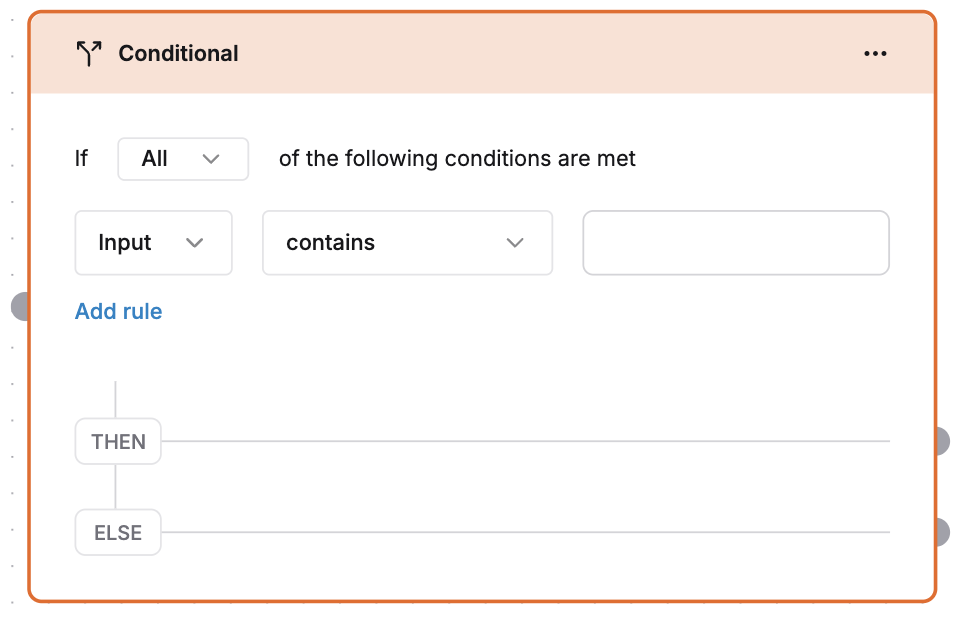
- Support for multiple conditions
- 2 available outputs:
- Then: Would route data through this port if condition is met
- Else: Would route data through this port if condition is not met
Prompt tools
Prompt tools
Attach prompt tools to your prompts.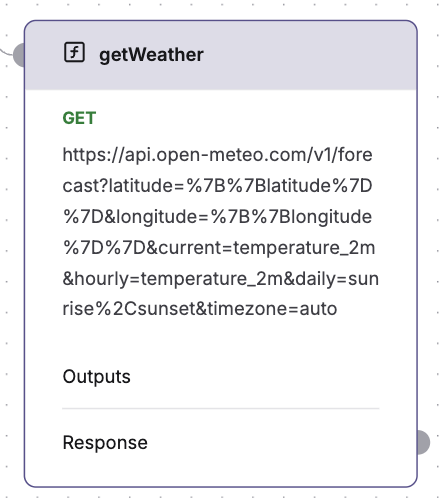
- The tool call is available as output for the next blocks
- Major use case is to connect the output back to the prompt to have the LLM call the tool again with the updated context
You cannot directly create prompt tools in the editor. Attach the tools to the prompt node in the configuration section. They will get attached automatically to the prompt.